
Local AI: Mini PC, Mac or a Desktop with a GPU?
Some links in this article are affiliate links. If you buy through them, I may earn a commission at no extra cost to you.
Buying hardware for local AI can get confusing very quickly.
You start by wanting a chatbot on your own computer. A few searches later, you are comparing mini PCs with huge amounts of memory, used graphics cards, Macs, and machines that cost more than the rest of your homelab combined.
Meanwhile, someone in the comments has connected several GPUs to a mini PC with adapters and somehow made it work.
Awesome project. Probably a lot to take on for a first setup.
A question in r/MiniPCs captures the problem well: small size, low noise, low power, plenty of memory, and enough performance for both language and image models.
All reasonable requirements. Fitting them into one affordable machine is the difficult part.
First, decide what “local AI” means for you
For starters, write down the actual task.
Do you want to ask occasional questions? Search through some documents? Use a coding assistant? Generate images? Keep a voice assistant available all day?
Those workloads can lead to different hardware choices. A machine that feels fine with a short chat may become frustrating when you give it long documents. A setup chosen for language models might also be a poor match for the image-generation software you want to use.
This article is a buying framework, rather than a benchmark of machines I have tested side by side. Before spending money, I would check the particular model and application I intend to run.
Memory is the first thing I would check
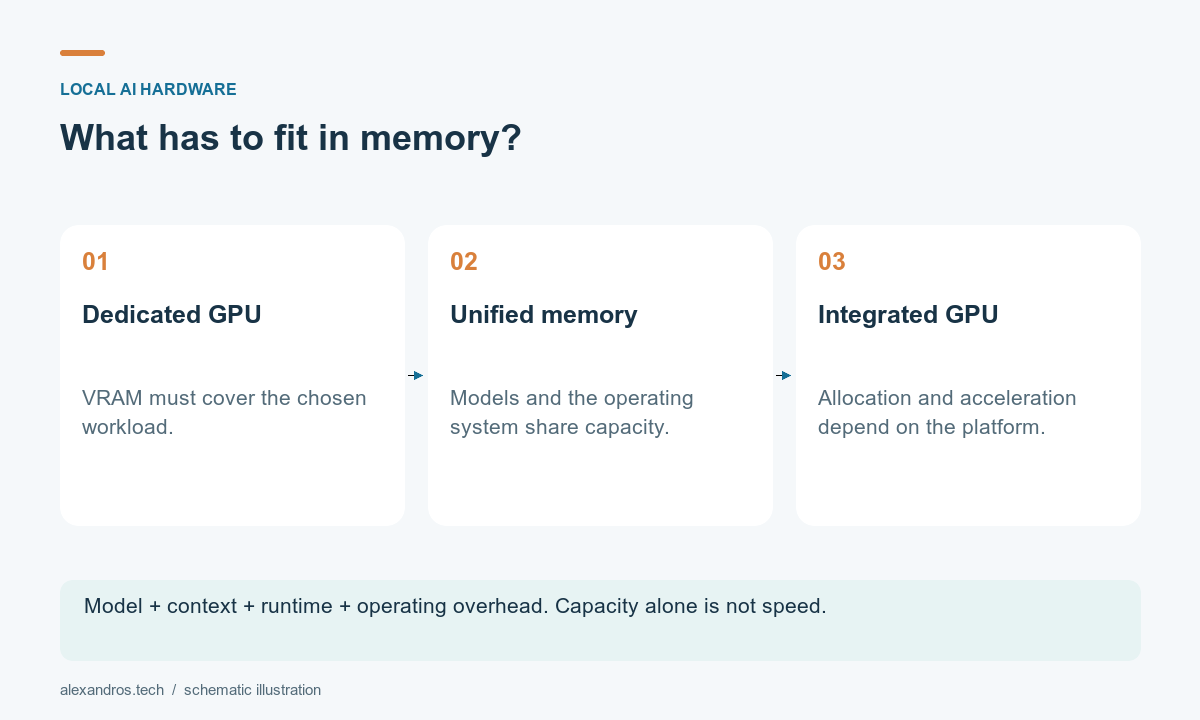
There are several memory numbers on a product page, and they don’t all mean the same thing.
A desktop may have plenty of system RAM but a graphics card with much less dedicated video memory. An integrated GPU shares system memory. Apple Silicon also uses unified memory, shared with the rest of the computer.
The model needs room, and so does the work you give it. Ollama’s context documentation explains that increasing the context length increases memory requirements. Long conversations, documents and coding tasks therefore need more consideration than whether the model initially loads.
Quantization can reduce the memory used by a model, with trade-offs that depend on the model and format. But the download size still isn’t a complete estimate of the memory needed during use.
Look for a test using the model, context length and software you care about. “It runs AI” doesn’t tell you very much.
Option 1: the computer you already own
This is where I would start, even if the eventual plan is to buy something dedicated.
LM Studio provides a desktop interface for downloading and running supported local models. Ollama is another option, including for applications that connect to a local model service.
Check their current requirements first. A supported application still needs a model that suits the available hardware.
Try a modest model with a few real tasks. Notice whether you dislike the answer quality, the waiting time, or both. Buying a faster machine won’t automatically fix the quality of a model’s answers.
This first experiment helps define what an upgrade should improve.
If there is time to make coffee, drink it and start wondering about dinner before the answer arrives, you have found a performance requirement.
Option 2: a mini PC
I like the idea of a small machine that can sit quietly in a corner and stay available. It also fits naturally into a homelab.
But the category is huge. A basic mini PC and a machine built around a much more capable integrated GPU are very different purchases.
Before ordering one, check:
- The exact processor and graphics hardware
- Support in the application I plan to use
- Installed memory, shared-memory limits and upgrade options
- Cooling and noise under sustained load
- Results from the exact configuration, where available
The large memory option on a product page is tempting. It may let you attempt workloads that don’t fit on a smaller machine, but capacity alone doesn’t tell you how responsive they will feel.
Also, take the “AI” label on the box carefully. An NPU is useful only when the chosen software can actually use it for the task. I would verify that support before paying extra for it.
For a concrete compact-PC comparison, the Minisforum UM870 Slim is one candidate. Check the RAM/SSD configuration and the application’s support for its exact graphics hardware. This is a product to investigate, not a measured local-AI winner.
Option 3: an Apple Silicon Mac
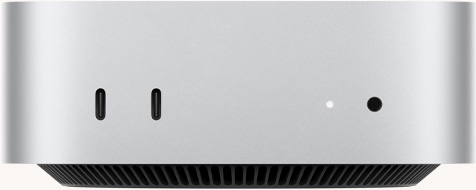
A Mac is worth considering if you also want it as your everyday computer, or already own one. The Mac mini M4 with 24GB unified memory and a 512GB SSD is a concrete starting point for comparing a compact desktop, provided the chosen configuration and software meet the workload. The Mac mini M4 Pro with 24GB unified memory and a 512GB SSD is another configuration to price against it; I would want comparable results from my intended workload before paying more.
LM Studio supports Apple Silicon, including an MLX runtime alongside its llama.cpp-based options. Its system requirements are a useful starting point, although the minimum for the app is different from the memory needed for a particular workload.
The memory configuration deserves attention before purchase. For example, Apple says memory in its M-series Mac mini models can’t be upgraded, so that configuration is a purchase-time decision. Check the exact machine you are considering.
I would compare configurations using the same model and context length. A video showing a large model loading successfully is interesting, but I would also want to see prompt processing and an actual answer being generated.
If the Mac would replace your existing desktop too, include that in the cost comparison. Buying it solely as an AI server is a different decision.
Option 4: a desktop with a dedicated GPU
This gives you more flexibility to change components, assuming the case, motherboard and power supply support the upgrade.
The graphics card is only the beginning of the shopping list. Check physical size, available connectors, cooling, noise and total system cost. A cheap used card can become a more expensive project if the rest of the machine needs replacing.
For a new-card comparison, the ASUS Dual GeForce RTX 5060 Ti OC with 16GB GDDR7 is one specific listing to investigate. NVIDIA’s GeForce RTX 5060 family page is one place to check the family specifications. Treat the model and memory configuration as part of the product name, then compare the price of the complete system. This is an example to investigate, rather than a measured winner for every local AI task.
Software compatibility also matters. Ollama publishes hardware support information, including supported GPUs and platform requirements. Other applications have their own support lists, so I would check the full stack rather than assuming every AI tool supports the same hardware.
Used hardware may offer an attractive combination of price and memory. I would still want a sensible return policy and a way to test it under sustained load.
A small shortlist to compare
Rather than opening twenty product tabs, I would start with three paths already discussed above:
| Candidate | Configuration detail to record | Evidence I would want |
|---|---|---|
| Minisforum UM870 Slim | Installed RAM/SSD, upgrade limits and exact GPU support in the app | The intended model and context running in the chosen application |
| Mac mini M4, 24GB / 512GB | Exact chip and unified-memory configuration at purchase | Prompt processing and generation for the same model/settings |
| Desktop with an ASUS Dual RTX 5060 Ti OC 16GB | Exact card and VRAM, plus the complete desktop cost | Application support, sustained behavior and whether the workload fits |
The linked product pages are starting points. I would choose the model and workload first, then compare the configuration that can actually run it. None of these rows is a benchmark result.
How I would choose
| What I want to do | First option I would investigate |
|---|---|
| Explore local models occasionally | Existing computer |
| Add a compact, always-available machine | Mini PC, after checking the exact workload |
| Buy a daily computer that also runs local models | Apple Silicon Mac or a suitable desktop |
| Experiment with GPUs, image models and future upgrades | Desktop with a supported dedicated GPU |
When you can try the hardware before committing, run the same small test: a normal question, a document task and, if relevant, a coding task. Keep the model, settings and input consistent between machines. If you can’t test it yourself, look for comparable results from the exact configuration.
Record how long the first response takes, whether the result is useful, and what happens to memory, noise and power use. A desktop that is fast but unpleasant beside your desk may be the wrong machine for your home.
My starting point would be one model and one useful task on hardware I already have. Once I know which limit I keep hitting, the upgrade becomes much easier to choose.